Fig 1. The7 Site Logo widget
The widget allows user to show website’s logo, and also change it for floating header.
In the “Content” tab, user can configure the main settings of the Site Logo widget, which allows displaying the website’s logo.
Content Section
The “Content” section allows user to manage the logo image and its behavior.
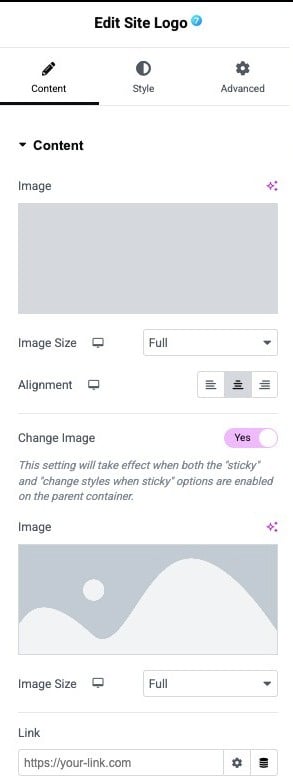
Fig. 2. Site Logo widget settings – Content tab
- Image – choose or upload the main site logo image.
- Image Size – select the image size (e.g., Thumbnail, Medium, Full etc.).
- Alignment – align the logo to the left, center, or right within its container (adjustable per device).
- Change Image – when enabled, user can set an alternative logo that appears when the header is sticky.
- Image – select the alternative logo image.
- Image Size – set the size of the alternative image.
- Link – define the URL to which the logo should link (by default, usually the homepage).
Style Section
The “Style” section allows user to manage the appearance of the logo.
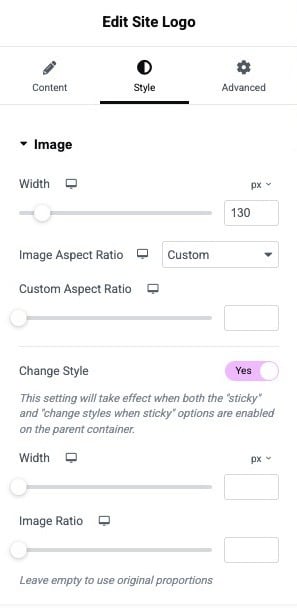
Fig. 2. Site Logo widget settings – Style tab
- Image Width – adjust the width of the image (adjustable per device).
- Image Aspect Ratio – select the ratio of the image – original or custom (adjustable per device).
- Custom Aspect Ratio – if enabled, user can set the desired ratio here (adjustable per device).
- Change Style – when enabled, user can set an alternative appearance, when the header is sticky.
- Image Width – select the alternative logo width.
- Image Ratio – set the ratio of the alternative image.
Advanced
The advanced section contains standard Elementor settings. More info is available here.